
You're mid-conversation with Claude, drafting a follow-up text to a lead who just asked about pricing. Claude writes a good reply. Then you copy it, switch to your SMS dashboard, find the right thread, paste, and hit send. Do that forty times a day and the AI stopped saving you real time somewhere around message twelve.
That gap exists because almost no texting platform gives an AI client anything to act on. It can help you write words. A human still has to carry them into another app. Android Texter closes that gap with a Model Context Protocol (MCP) server: a way for Claude Desktop, and other MCP-compatible AI clients, to read a conversation thread and send the SMS itself, without you leaving the chat window.
This matters more for the operators this blog is written for than for a general sales team. If you're already texting through a P2P gateway because carriers won't approve your campaign, the last thing you want is a second manual step layered on top of the first workaround. This is that step, removed.
What the Android Texter MCP server actually does
The server exposes seven tools to any connected AI client:
- send_message sends an SMS through your paired Android phone.
- get_conversation pulls a thread's message history so the AI has context before it drafts anything.
- list_devices shows which phones are currently paired and online, useful if you're running outbound across more than one line.
- ab_propose_test, ab_list_tests, ab_stop_test, and ab_get_decisions let the AI propose and review A/B tests on landing-page copy tied to your SMS campaigns.
The A/B tools only produce drafts. Nothing goes live until a human reviews and approves it, so the AI can research and propose a variant, but it can't push a test to real traffic on its own.
Access runs through the same API key you'd use for the REST API: an atx_-prefixed key generated from the dashboard at /dashboard/settings/api-keys. That key scopes what the AI can see and do, so it only reaches the conversations and devices you've authorized, not a blanket view of your inbox.
What MCP actually is
Model Context Protocol is an open standard Anthropic introduced in November 2024 for connecting AI applications to external tools and data sources. Before MCP, every AI product that wanted to call an external tool needed a custom, one-off integration. MCP standardizes that connection so one server can work with any compatible client. Claude Desktop supports it natively, and so do Cursor, Cline, and Zed, among others.
In practice this means the Android Texter MCP server isn't a Claude-only feature. If your team drafts outreach in Cursor or Cline instead, the same server and the same tools work there too.
Why not just call the REST API directly
Android Texter has always had a REST API: POST /api/v1/messages/send, an X-API-Key header carrying your atx_ key, and interactive docs at /api/swagger. If you're writing your own application, that's still the right layer to build against, and it isn't going anywhere.
MCP solves a different problem. It's not a replacement for the REST API, it's a standardized way for an AI client to discover and call that same kind of functionality without you writing a custom integration for each assistant you use. The REST API is for your code. The MCP server is for the AI you're already talking to, so a request that starts as "draft a reply to this lead" can end with the message actually sent, in the same conversation, without a developer wiring anything together first.
Connecting Claude Desktop to Android Texter
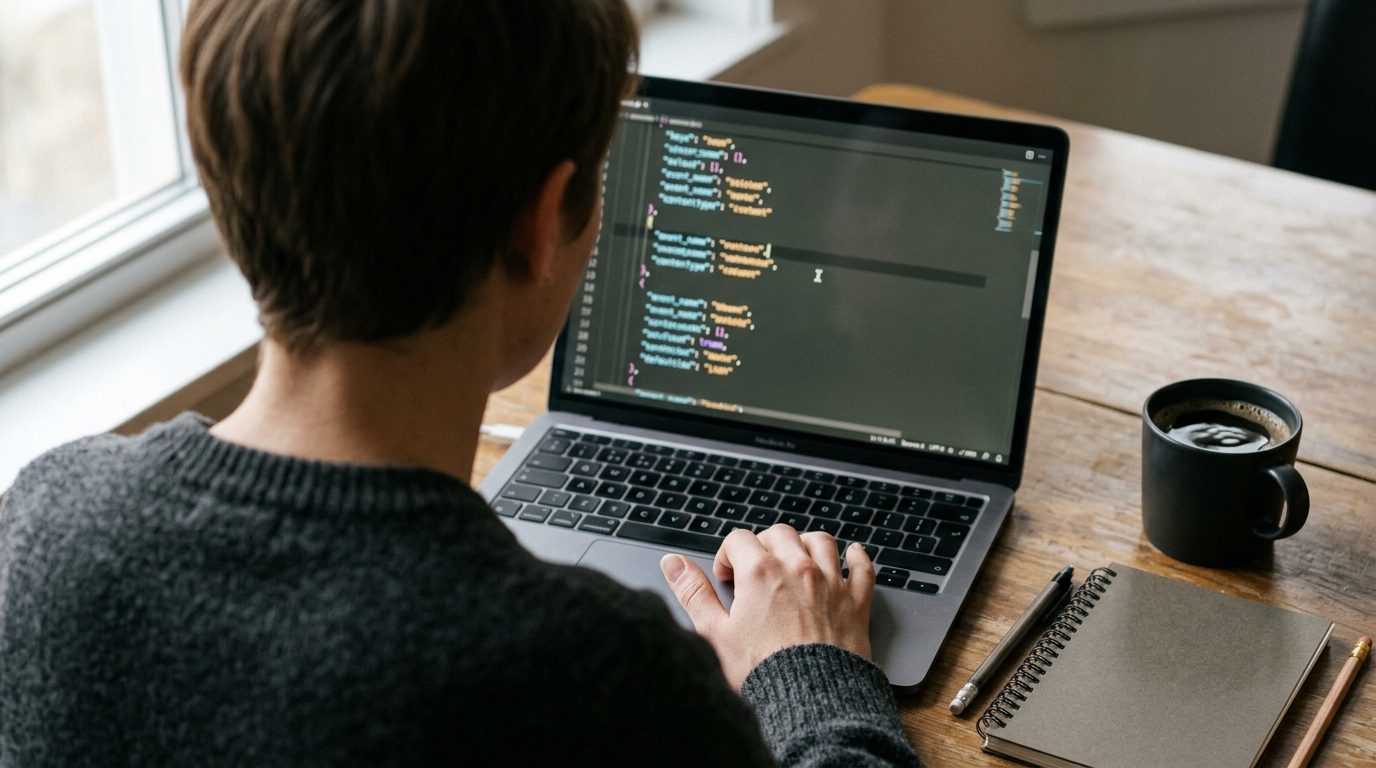 The Android Texter MCP server runs locally. It is a single standalone JavaScript file that Claude Desktop launches on your own machine and talks to over stdio, so there is no hosted connector URL to paste and no npm install to do. All you need is Node.js. The setup page at androidtexter.com/mcp has the file and the config block.
- Generate an API key at
/dashboard/settings/api-keysin your Android Texter dashboard. - Download the server file from androidtexter.com/mcp and put it somewhere it can stay.
- In Claude Desktop, open the app menu and go to Settings, then the Developer tab, then click "Edit Config." This opens
claude_desktop_config.json, located at~/Library/Application Support/Claude/claude_desktop_config.jsonon macOS or%APPDATA%\Claude\claude_desktop_config.jsonon Windows. - Add an entry under the
mcpServerskey that runsnodeagainst the file you downloaded, withATX_API_KEYset to your key in theenvblock. That is the same shape Anthropic's own MCP quickstart documents for any local server, and the setup page has it ready to copy. - Save the file and fully restart Claude Desktop.
- Confirm it connected by clicking the "Add files, connectors, and more" control at the bottom of the chat box. The Android Texter tools should appear in that menu.
The same config works for Cursor and Windsurf, which read the same stdio server.
Either way, a bad config or a stale key is the most common failure mode. If the tools don't show up after a restart, check Claude's MCP logs (~/Library/Logs/Claude/mcp*.log on macOS) before assuming the server itself is broken.
What this looks like once it's running
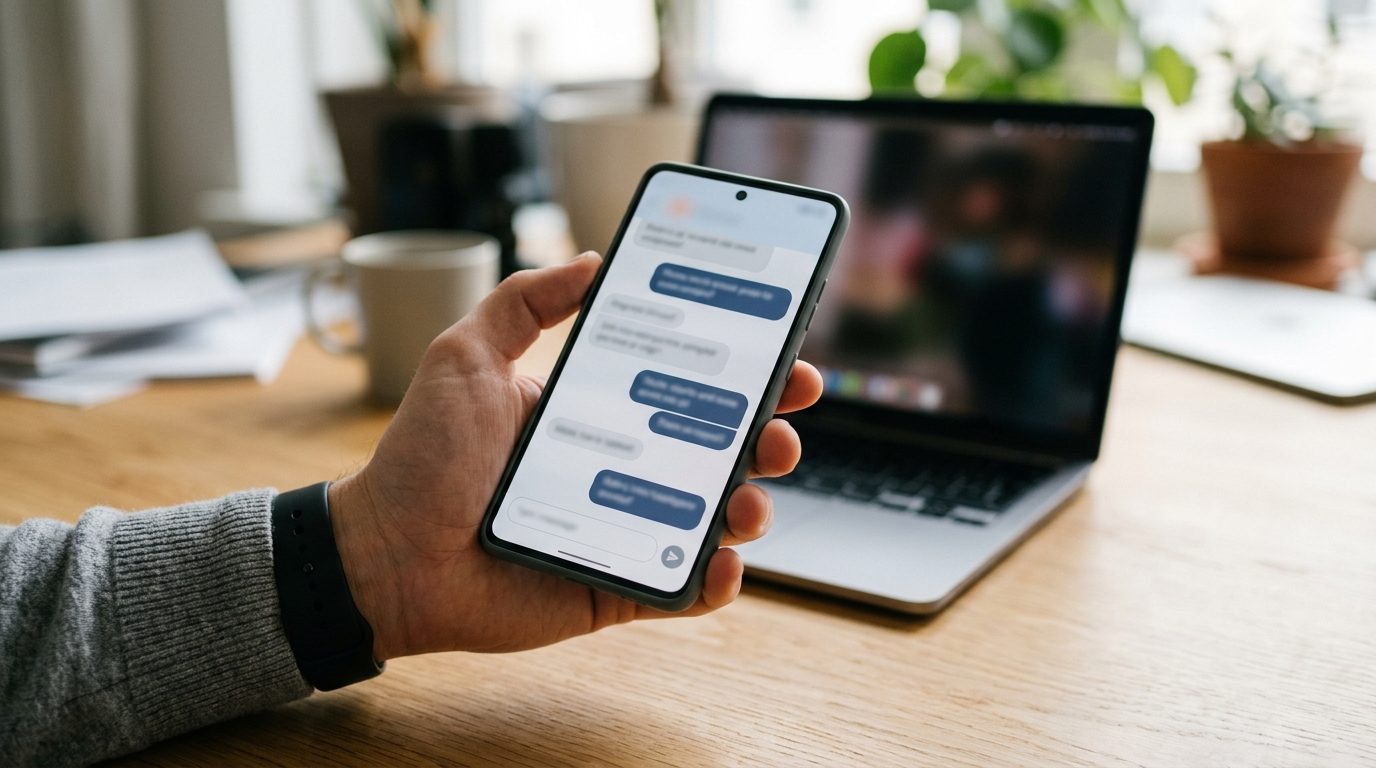 Three patterns cover most of how operators actually use it:
Context-aware replies. Ask Claude to pull up a specific thread with get_conversation, summarize where the conversation left off, draft a reply, and send it with send_message, all in one exchange instead of four separate app switches.
Routing across multiple lines. If you're running outbound across several paired phones to spread volume, ask Claude to check list_devices first so a message goes out from the line you actually intend, not whichever one happens to be first in the queue.
Draft-only copy testing. Have Claude propose an A/B test on a piece of landing-page copy with ab_propose_test, review the proposal yourself, and only then decide whether to let it run.
None of this removes the judgment calls. It removes the copy-paste between them. You're still the one who decides what a lead hears back and when; the tool calls just mean that decision doesn't require a second application open in another window.
The MCP server doesn't touch your TCPA obligations
 Nothing about connecting an AI client changes who's responsible for consent. The Telephone Consumer Protection Act governs who you can text and what you can say to them regardless of whether a human or an AI-assisted workflow drafted the message. If Claude drafts a marketing text and you send it to a number without consent on file, that's the same TCPA exposure it would be if you'd typed it yourself.
What Android Texter's architecture changes is the carrier layer, not the legal one. Messages route through your own paired phone as person-to-person SMS, so they aren't subject to the A2P 10DLC vetting and campaign-approval process that carriers apply to registered business traffic. That's a separate question from consent. Get consent, keep records of it, and honor opt-outs, an AI in the loop doesn't change any of that.
Frequently Asked Questions
Does this only work with Claude Desktop?
No. MCP is an open standard, and the Android Texter server works with any MCP-compatible client, including Cursor, Cline, and Zed. The setup steps differ slightly by client, but the same tools (send_message, get_conversation, list_devices, and the A/B testing tools) are available everywhere.
Can Claude send a message without me approving it first?
By default, no. MCP clients including Claude Desktop prompt for your approval before a tool call executes, the same way the filesystem tools do in Anthropic's own quickstart. You review the draft, then approve the send_message call. Some clients let you set a tool to auto-approve; that's a setting you turn on deliberately, not a default.
Does the AI see my entire SMS inbox?
No. Access is scoped to your API key, and get_conversation only pulls the specific thread you ask about in that exchange. There's no standing bulk export of your inbox to the AI client, and the model only sees a thread's contents when you or the assistant explicitly pull it into the conversation.
Do I need to know how to code to set this up?
Editing a JSON config file is the most technical part, and it's copy-and-paste, not development. If your Android Texter server connects as a remote connector instead, setup is entirely inside Claude's Connectors menu with no file editing at all.
Does using Claude to draft messages create extra TCPA risk?
Not inherently, but it doesn't reduce it either. The consent and content rules that apply to a human-drafted marketing text apply equally to an AI-drafted one. Treat AI-generated copy the same way you'd treat copy a staff member wrote: reviewed, on-file consent before it goes to a number that hasn't opted in.
Send the text without leaving the chat
If you're already drafting outreach inside Claude, Cursor, or another MCP client, the Android Texter MCP server removes the last manual step between the draft and the send, on a channel that routes through your own phone instead of a carrier-gated business line. Set up your API key and connect it the next time you're in Claude Desktop's Developer settings.